Assets - Maintenance Scheduling
Configuring and Managing Asset Maintenance Schedules
Maintenance schedules have been configured to support regular servicing and ensure vehicles remain safe, reliable, and fit for use. Planned maintenance based on time and kilometres allows service requirements to be generated before they become overdue. This helps reduce breakdowns, prevent safety issues, minimise downtime, and extend asset life while keeping vehicles compliant and operational.
This tutorial shows you how to setup and assign schedules to your assets.
Maintenance Schedule Configuration
Think of your schedule configuration as a library of schedules that can be applied to multiple assets. Keeping your schedules generic will allow you to easily reuse schedules against your assets (Eg 6 Month COF, Truck - RUCS). Try and avoid using specific schedule names as the specific parameters such as start date or meter readings will be assigned to each asset when you add to the asset.
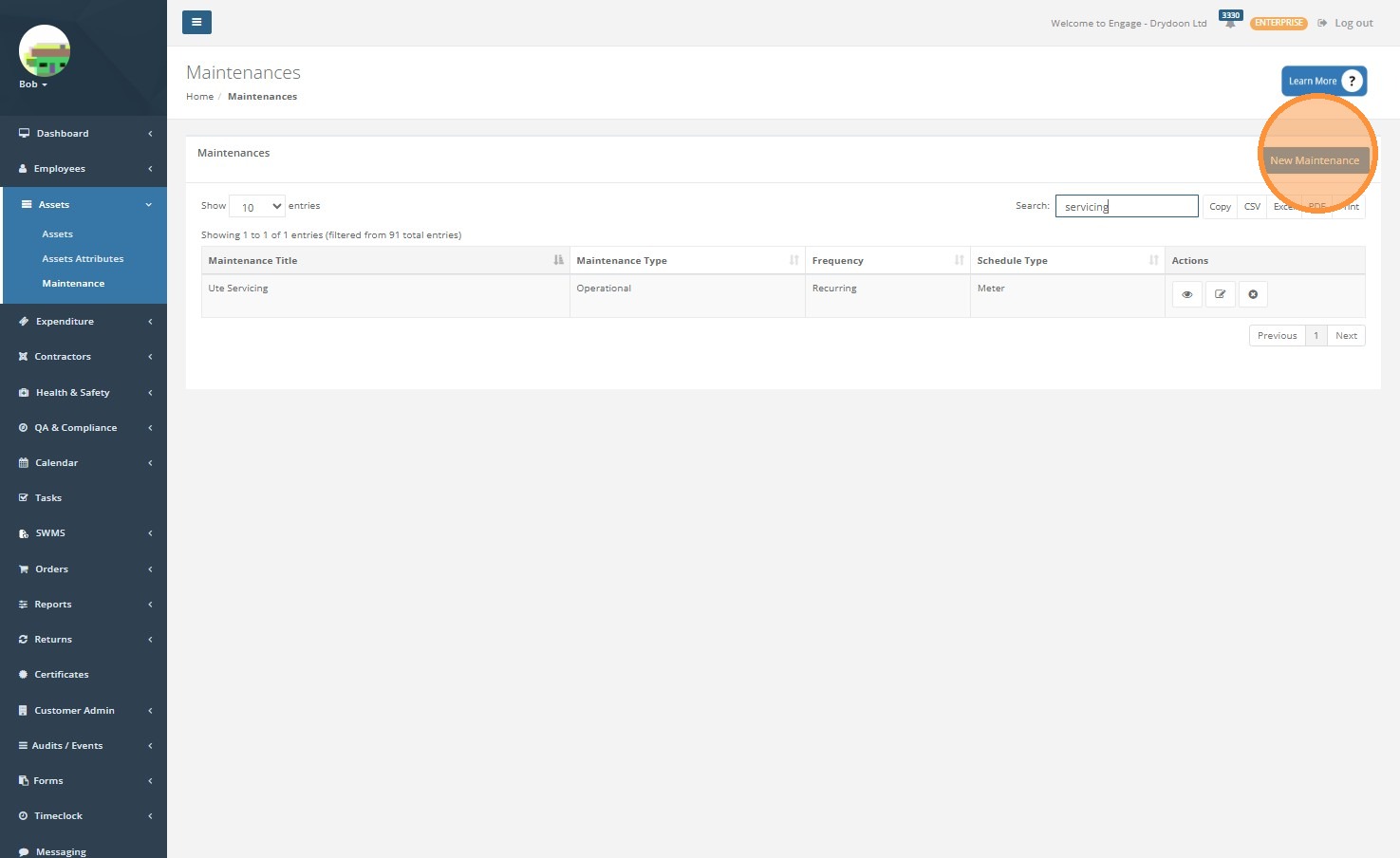
Navigate to Assets Maintenance Setting page. Click "New Maintenance"
Creating Date Based Maintenance
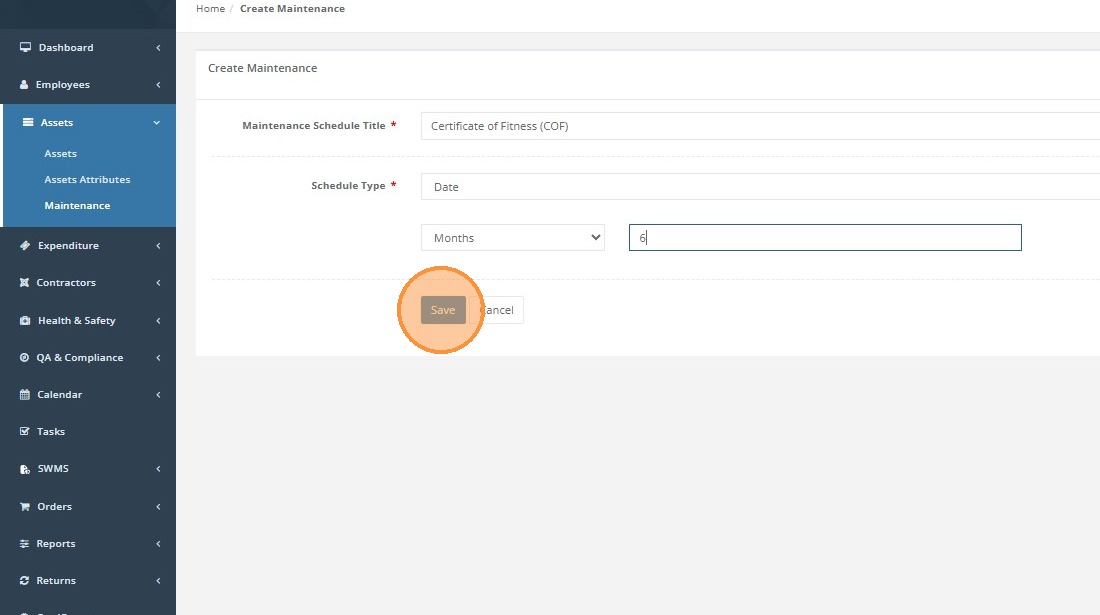
Give your 'Maintenance Schedule Title' a meaningful name to help you select it when assigning it to the asset.
Select the 'Schedule Type', in this case the "Date" option.
Select the correct timeframe (Days, Weeks, Months, Years) option that relates to the maintenance period you need to setup.
Enter the required Recurring counts for selected Date Frequency field.
Click "Save"
Creating Meter Based Maintenance
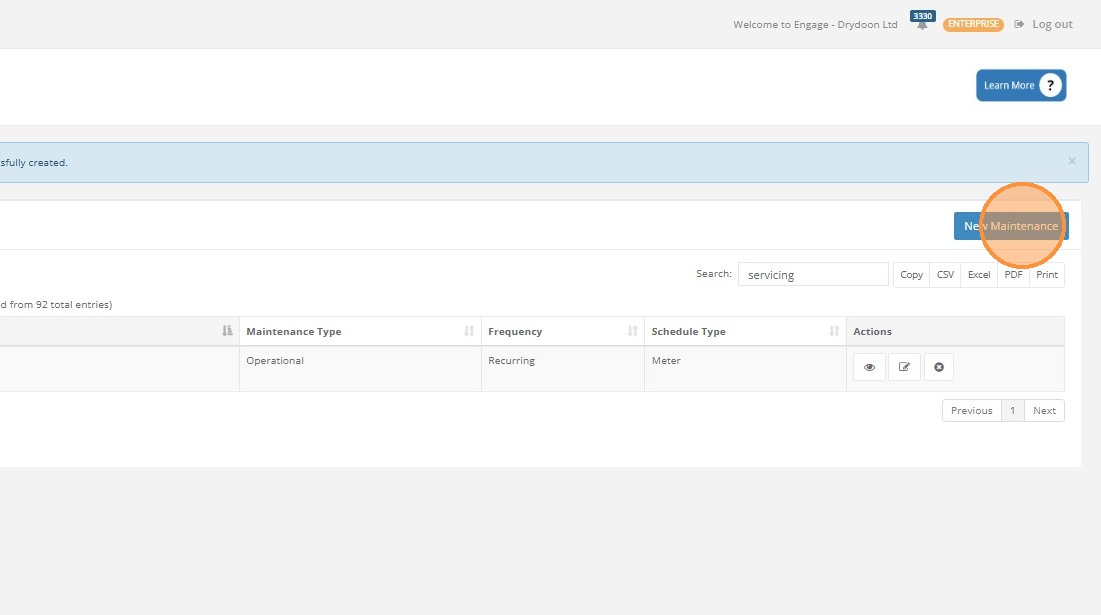
Click "New Maintenance"
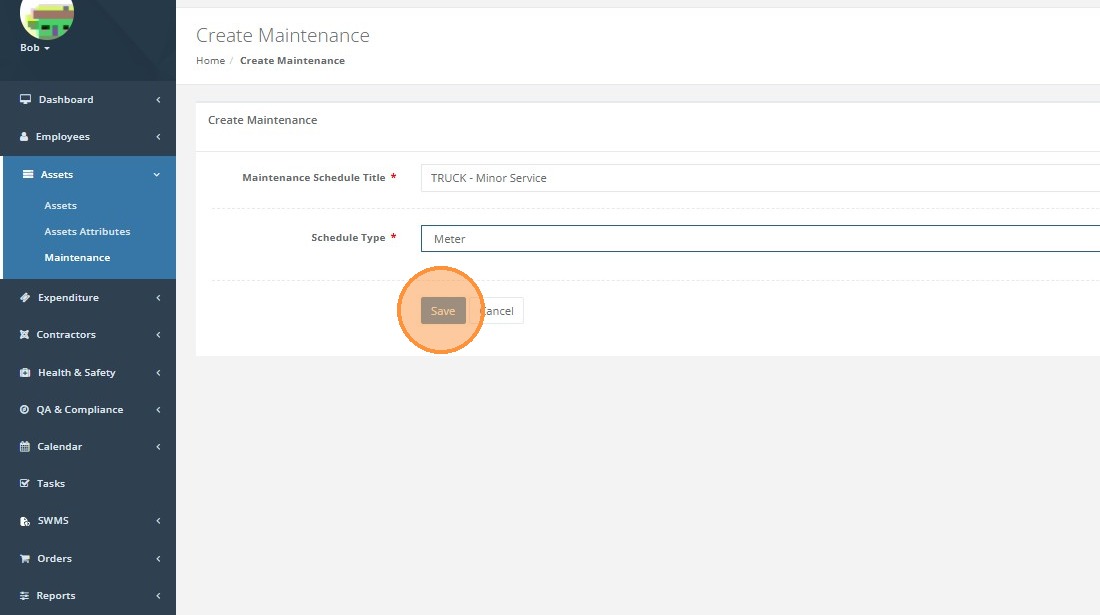
Give your 'Maintenance Schedule Title' a meaningful name to help you select it when assigning it to the asset.
Select the 'Schedule Type', in this case the "Meter" option.
Click 'Save'
Asset Maintenance Assignment
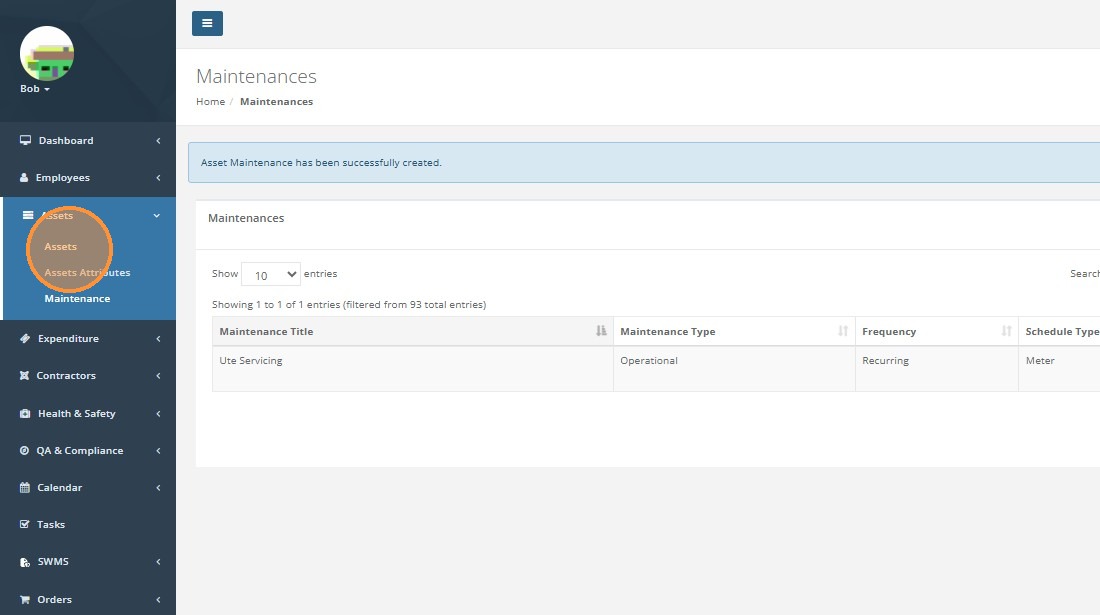
Click "Assets"
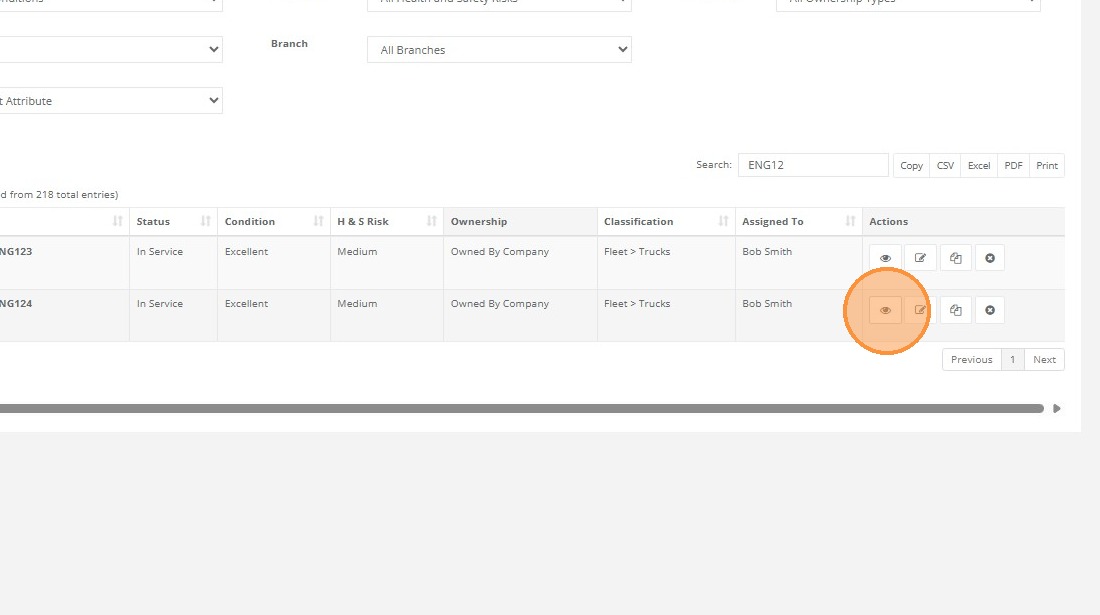
Find your asset then select asset view from the actions list.
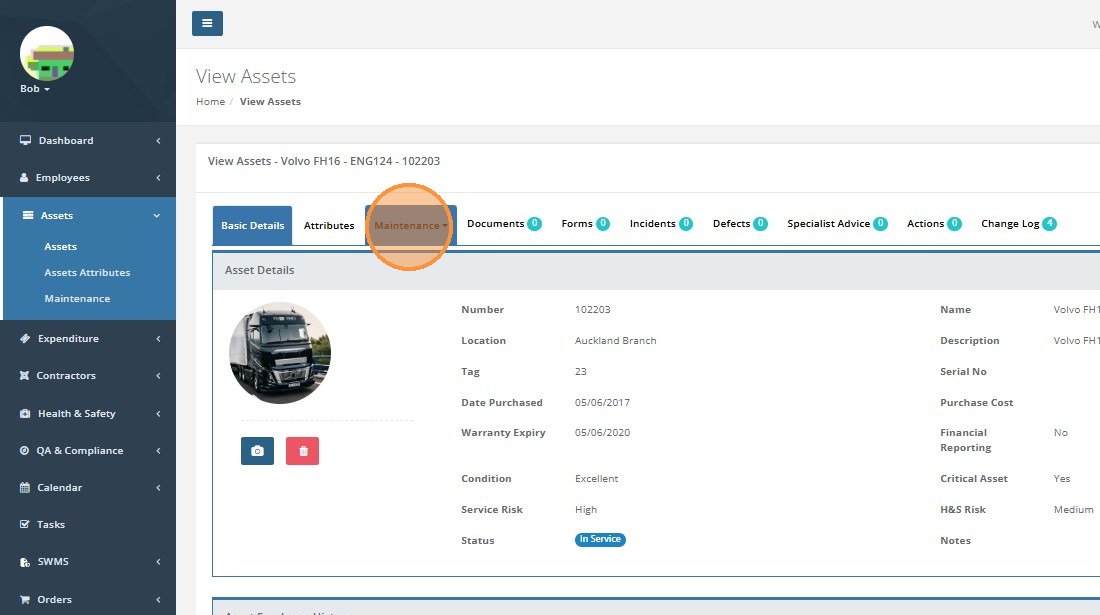
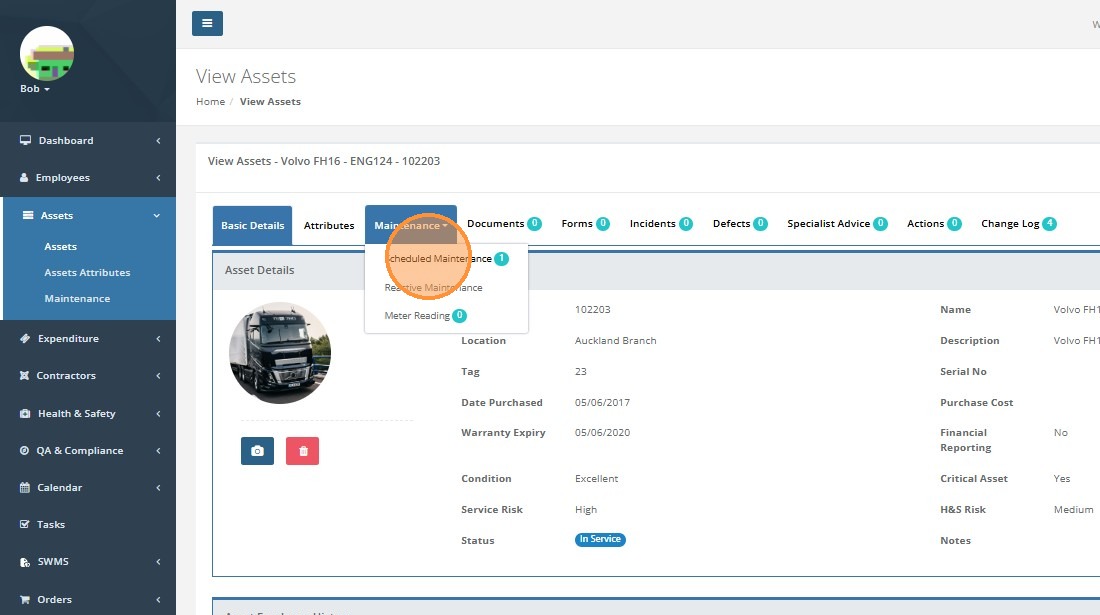
Click "Maintenance"
Navigate to "Scheduled Maintenance" under Maintenance menu.
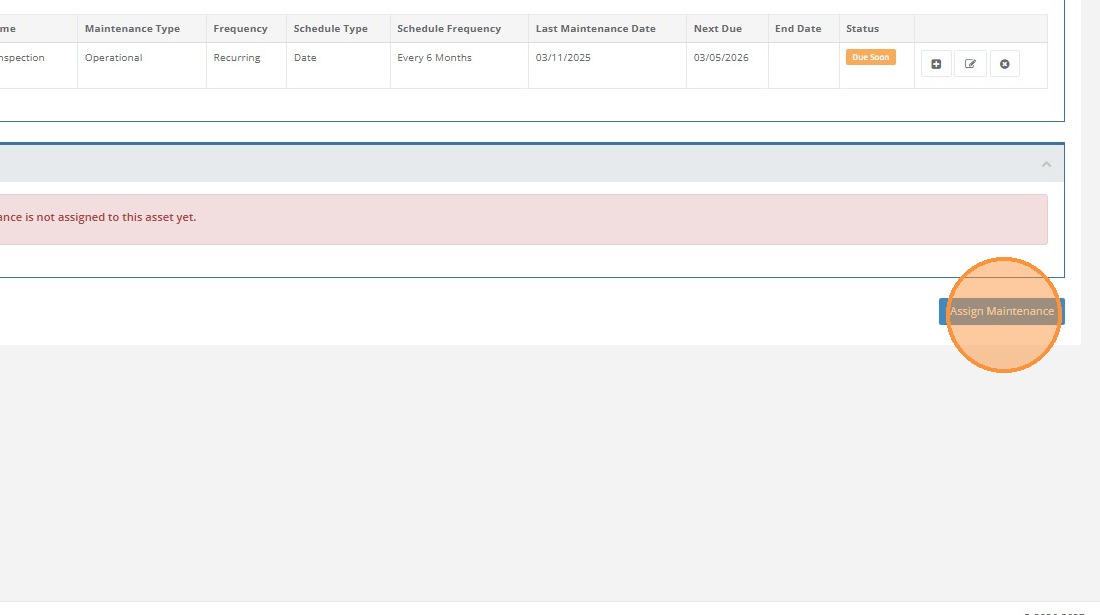
Click "Assign Maintenance"
Adding Date Based Schedules to an Asset
For a date based schedule.

Select "Date" as Schedule type
Select the required Maintenance Schedule from the list.
Date based schedules default in this dropdown list to only show date based when selected.
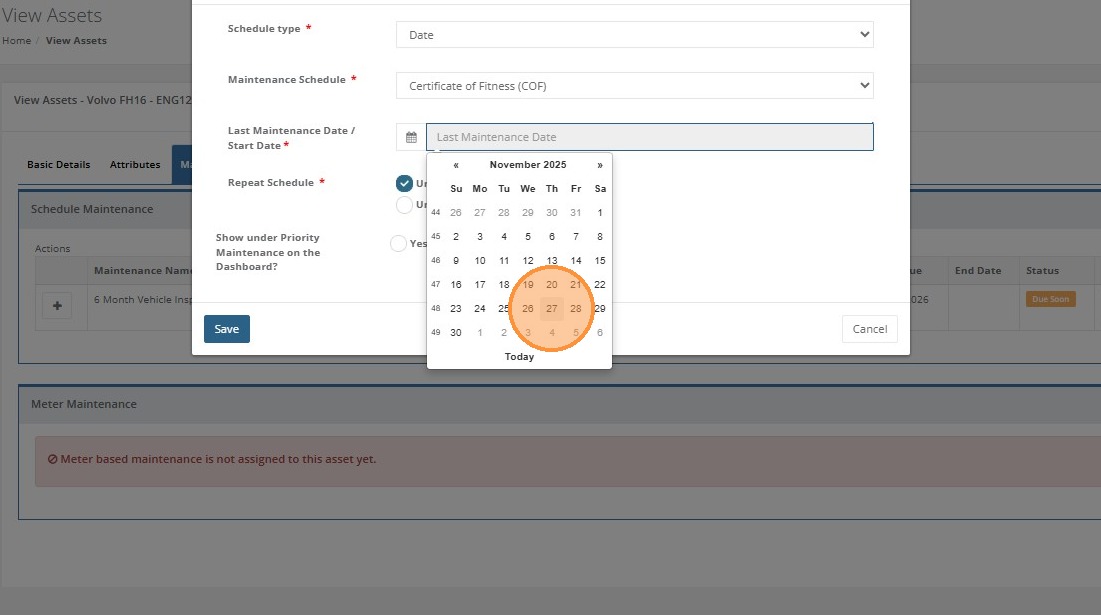

Select the date that either corresponds to the last date this scheduled activity was done, or the date you want it to start from. In the example below, when we setup the core schedule we assigned a schedule repeat of every 6 months. So if it were last done 2 months ago we would use that as our start date, our next schedule will then generate in 4 months time (2 Months + 4 Months = Our designated 6 Month schedule repeat)
If this is an asset that needs to stand out from the rest for scheduling, you can toggle "Show under Priority Maintenance". This will add it to the priority asset dashboard. Click 'Save' when you have completed all the necessary fields.
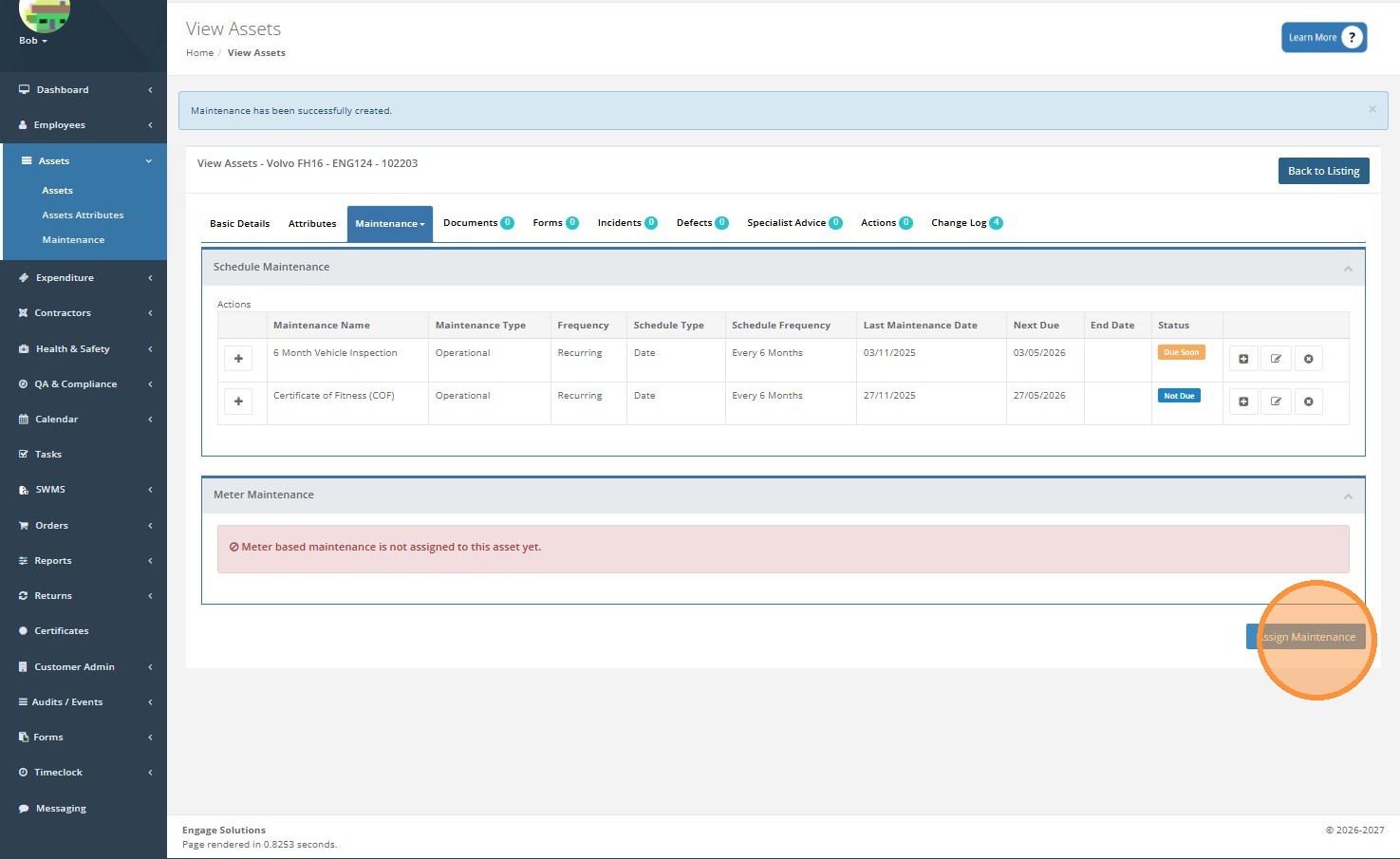
As seen in the example below we can see the status of each schedule we add to the asset. In the example below we can see that the schedule we added is 'Not Due', however a '6 month Vehicle Inspection' is 'Due Soon'.
Adding Meter Based Schedules to an Asset
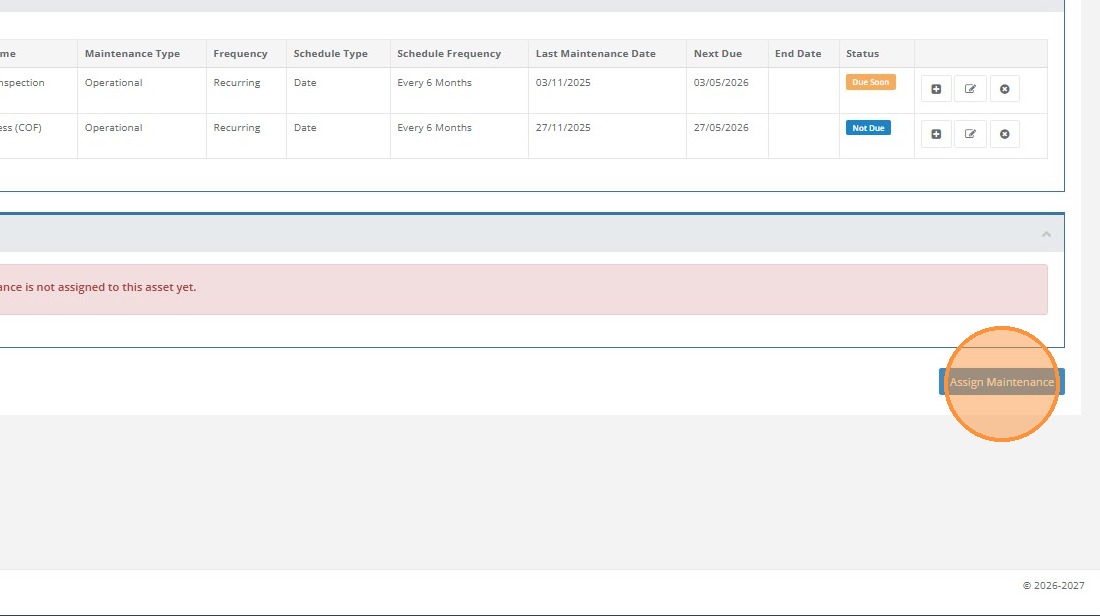
Click "Assign Maintenance"
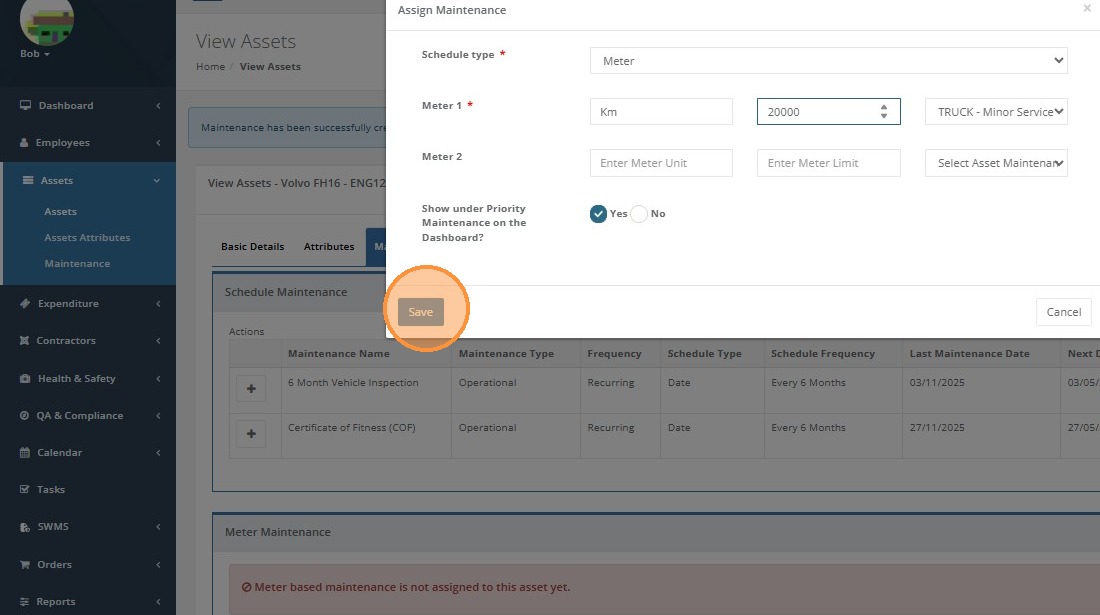
Select "Meter" as Schedule type and then select the required meter Maintenance Schedule. Meter schedules default in this dropdown list to only show meter when selected.

Enter the 'Unit of Measurement' in Meter Unit, in this case we have entered Km.
In the meter limit enter the frequency of this schedule. In this case for the 'TRUCK - Minor Service' we have entered "20000"
Once assigned this will identify that the schedule needs to be done as it approaches the meter reading. So if the current meter reading were 42000 Km, as it approaches 62000Km you will be notified that a 20000Km service will be due soon.

Click "Save"
Meter Reading Records

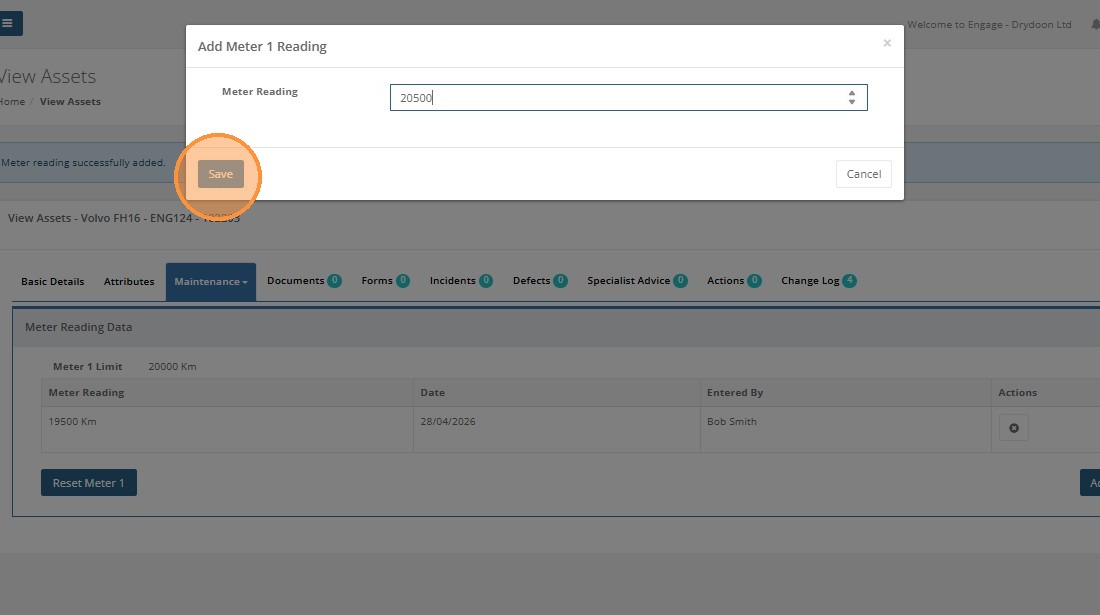
Go to Maintenance > Meter Reading and click "Add Meter 1 Reading".
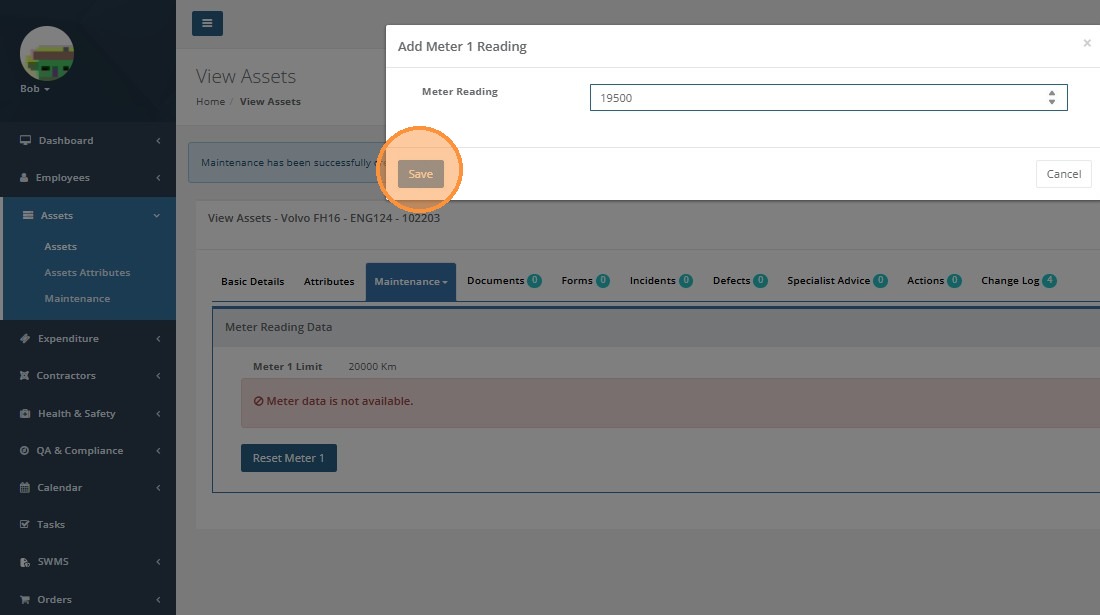
Update the meter readings with the current vehicle reading.

Click "Save"

To view how this affects your assigned maintenance schedules.
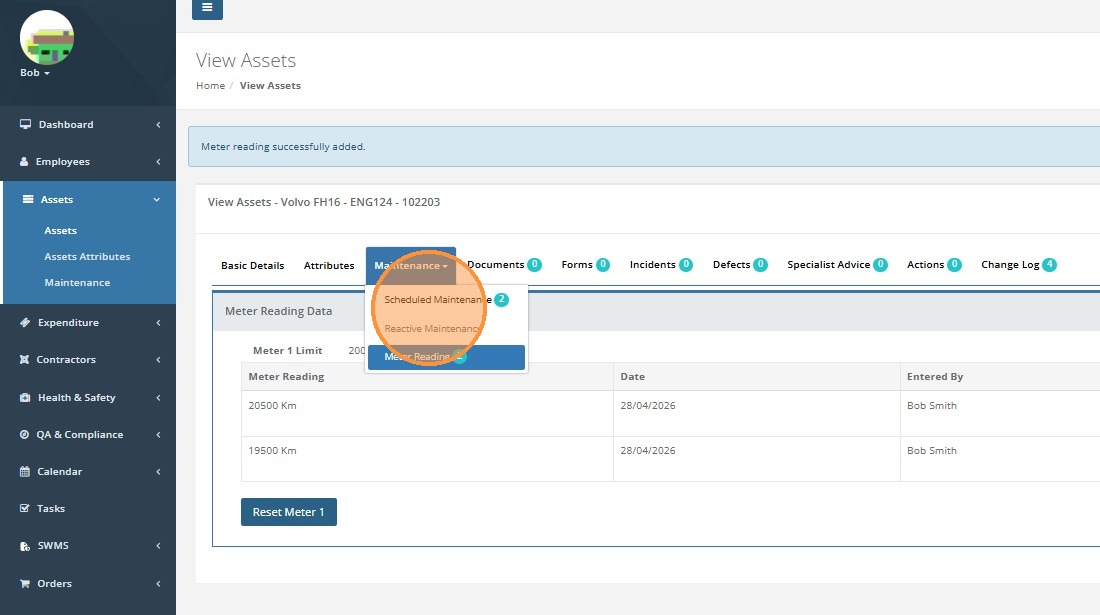
Click 'Maintenance'
Click 'Scheduled Maintenance'
Click Meter Reading and click "Add Meter Reading".
Enter the meter reading for the asset and click 'Save'
Adding a Maintenance Record
Click 'Maintenance'
Click 'Scheduled Maintenance'
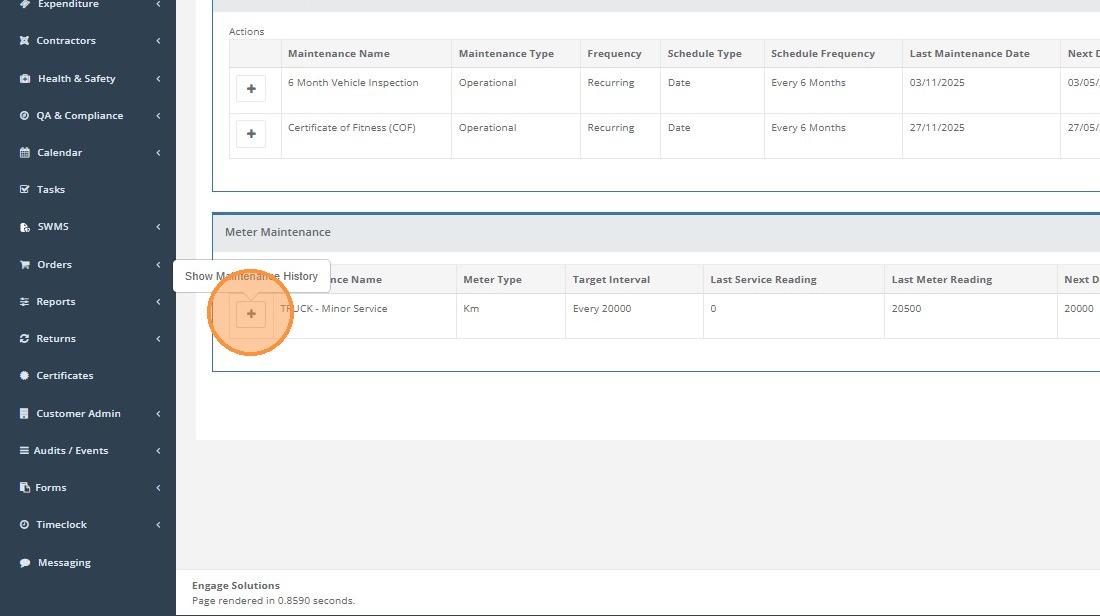
To view all maintenance history for a specific schedule for your asset. Expand the maintenance history.
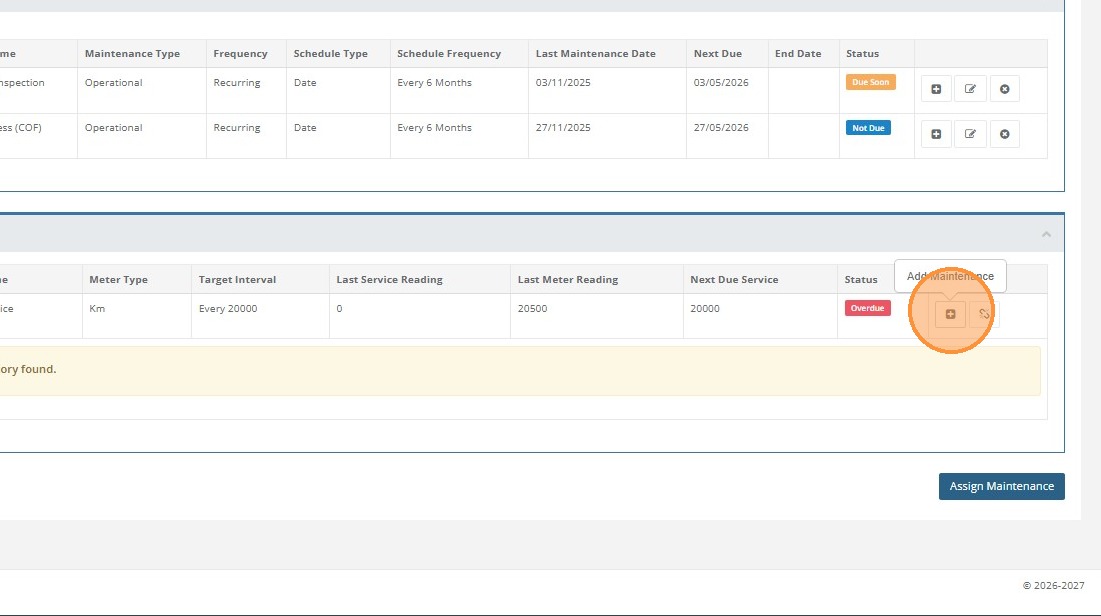
To add a new maintenance event Click '+' to record a new maintenance activity. Note the statuses against the schedule, these will be cleared once maintenance has been added, and the maintenance history added to the schedule.
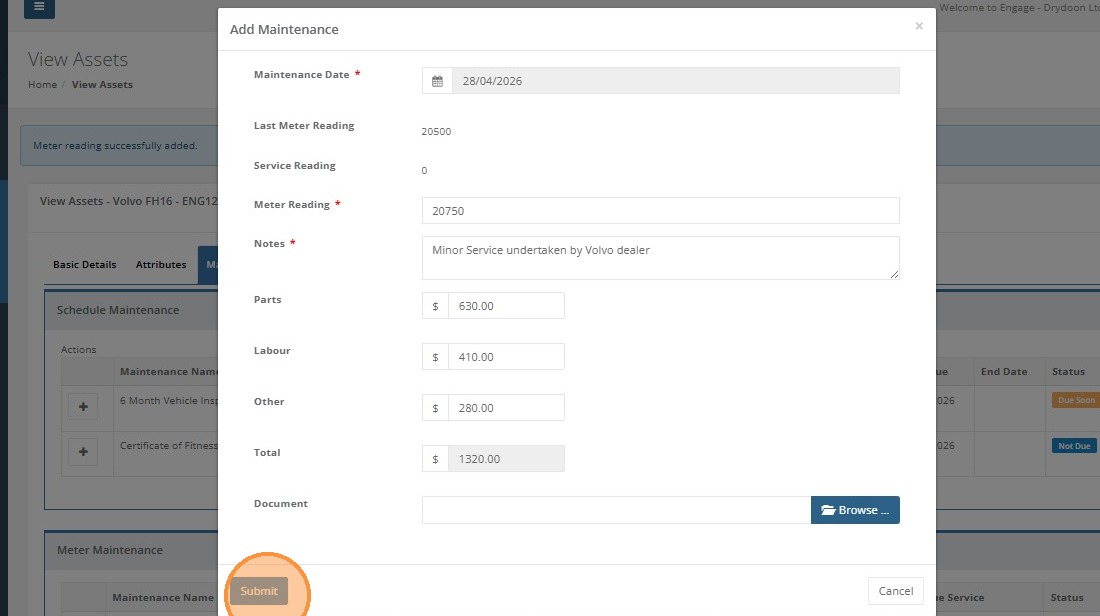

Complete all the relevant fields including any costs associated, or documents (Inspections, reports, invoices etc) and then click 'Submit'.
Note if this is meter based, capturing the meter reading will reset the meter to start the next maintenance cycle.
If you are adding maintenance to a date based schedule, the maintenance date will reset the maintenance to assigned cycle, you dont capture meter readings for date based maintenance.
Removing a Maintenance Schedule from an asset
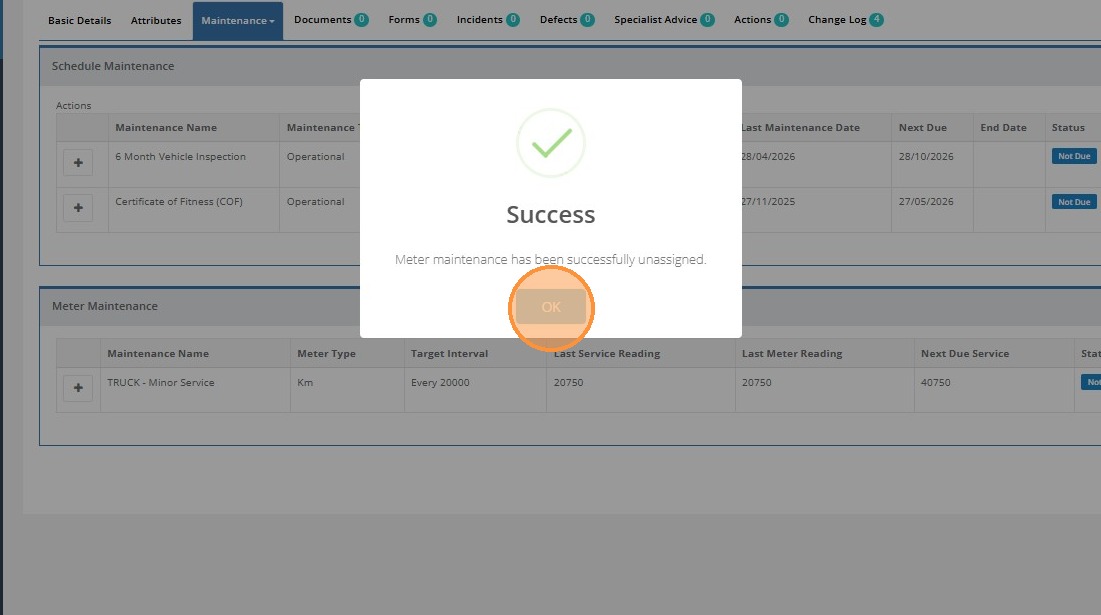
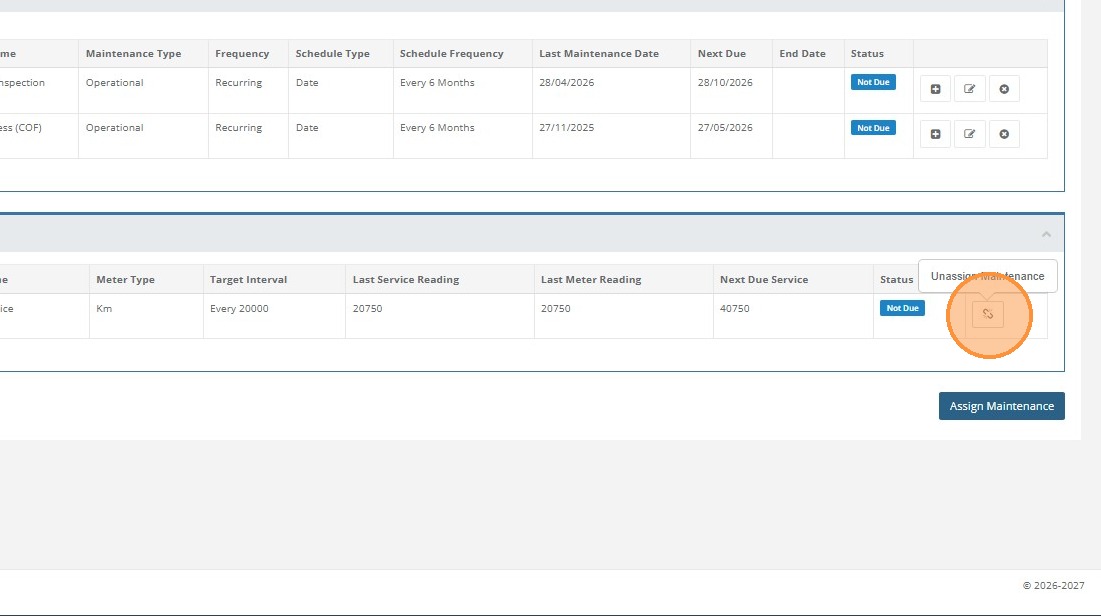
If required, you can unassign a maintenance schedule from an asset by clicking the 'Unassign Maintenance" icon on the right of the schedule. To ensure no information is lost however, any previous history will be added to the 'Past Maintenance' records at the base of the schedule information.
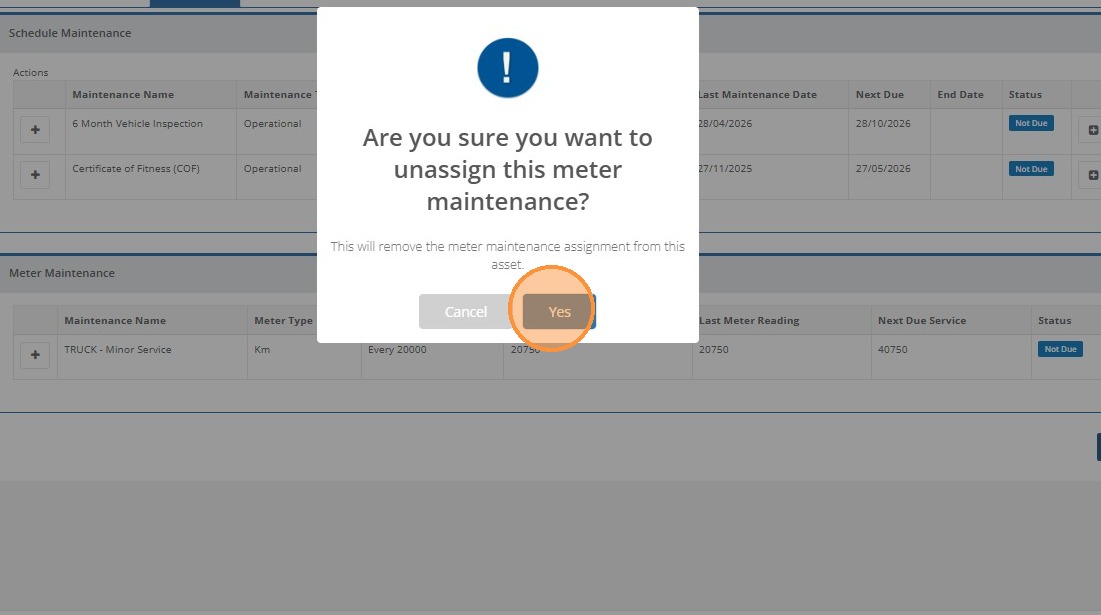
Click "Yes"
Click "OK"